
 Search
Adding CareCredit marketing assets to your website
Use the steps below to add CareCredit marketing assets to your website. Choose the implementation method that works best for your website and follow the corresponding instructions.
These steps may vary depending on which website editor you’re using. If you need more detailed help, check out the additional resources section below or visit your website editor’s support center.
Option 1: Embed marketing assets
1Copy embed code
Choose the asset you would like to embed on your website. Then, copy the code to your clipboard by clicking the “embed” icon button seen in the example below.
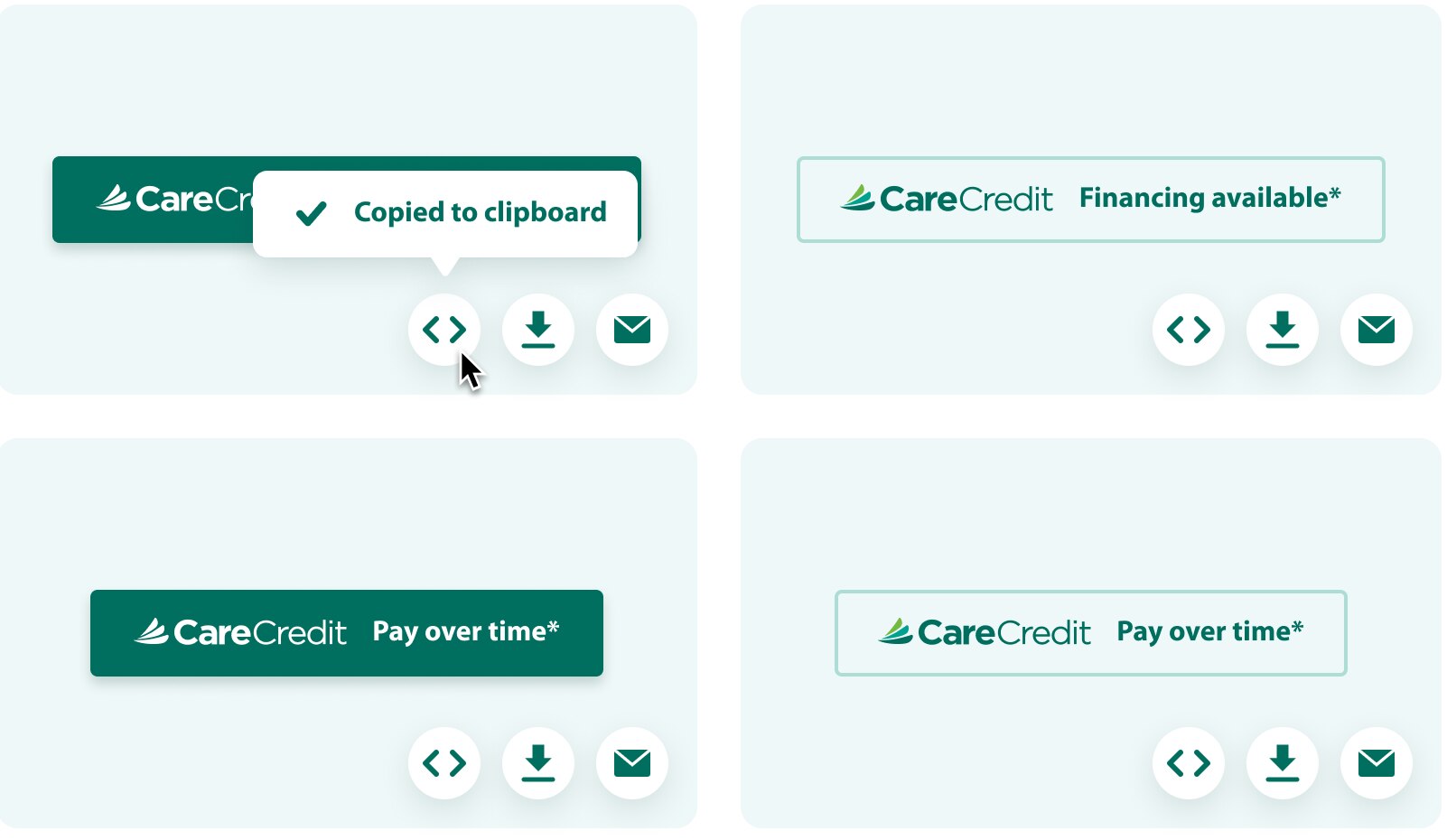
2Add HTML code content block
Navigate to your website editor dashboard and locate the page where you’d like to embed the asset. Look for the option to add content. You’ll want to choose the option labeled HTML, Embed Code, or Custom HTML – the wording may vary depending on your website editor. Once selected, a content block will appear where you can paste your HTML code.
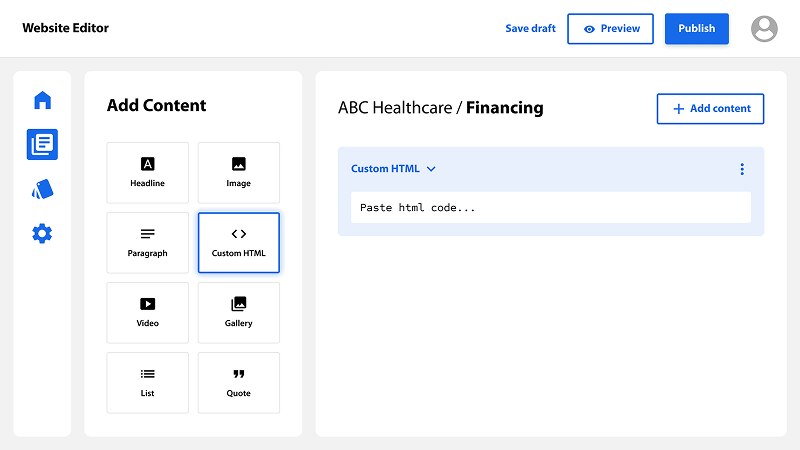
3Paste embed code into content block
Paste the code into the HTML content block. Avoid making any changes to the code – editing it could cause errors or prevent the asset from working properly.
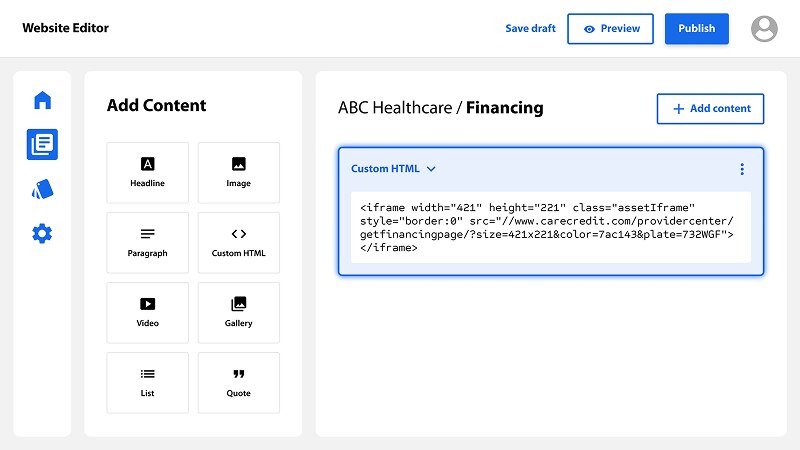
Preview your updates to the page to make sure everything looks right. If it does, save your changes and click Publish when you're ready to make the page live.
Option 2: Upload and link downloadable assets
1Download your marketing asset
Choose the asset you’d like to use on your website, then click the download icon to save the asset to your computer. For the best experience, we recommend downloading the image size that best fits your website layout.
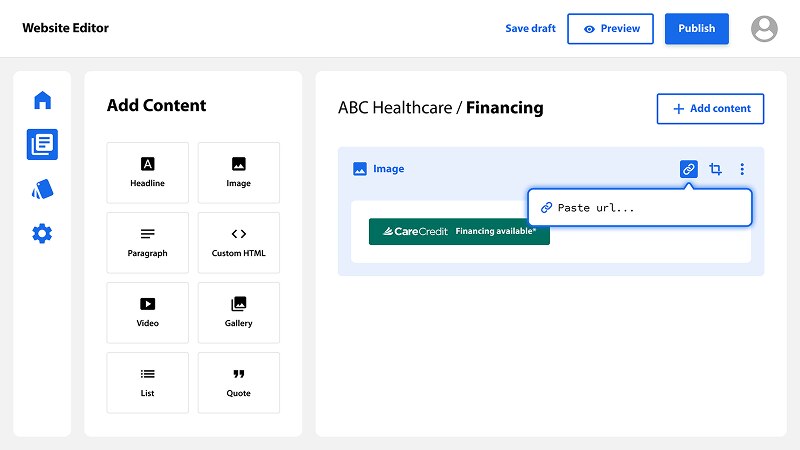
2Add image content block
On your webpage, look for the option to add content. You’ll want to choose the option labeled Image, Image Block, Media, Banner, or similar — the wording may vary depending on your website editor. Once selected, an image content block will appear where you can upload your downloaded marketing image.
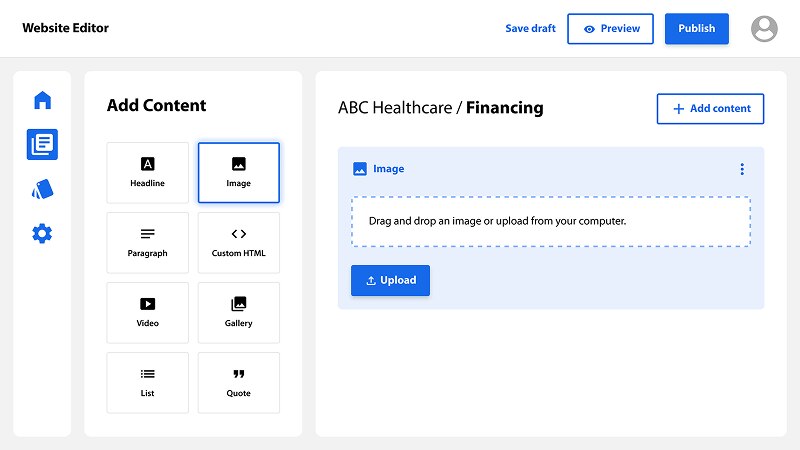
3Upload your marketing asset
Upload the downloaded CareCredit marketing image into the image content block. Preview the image placement to make sure everything looks right across desktop and mobile devices.
4Add your custom link
Select the uploaded image and add your unique CareCredit custom link as the image hyperlink or destination URL. This allows patients or clients to click the image to explore financing with the CareCredit credit card, see if they prequalify, apply, and make payments to you online.
Preview your updates to the page to make sure everything looks right. If it does, save your changes and click Publish when you're ready to make the page live.
Additional resources
Depending on which website editor you’re using for your practice’s site, the steps might look a little different. To make things easier, we’ve linked to help articles from some of the most popular editors that show you how to upload image assets and add links to your site.

Need more help?


Call Support
(800) 859-9975
Option 1, then 6, Monday – Friday: 8:00 AM – 6:30 PM (EST)
For other inquiries, follow the prompts:
Monday – Saturday: 7:30 AM – 2:00 AM (EST), Sunday: 9:00 AM – 2:00 AM (EST)